Top 5 Settings to Boost Your FPS in Apex Legends (2026)
Struggling with frame drops in Apex? These 5 settings changes can instantly boost your FPS, no hardware upgrade needed.

0x3nn
Author
Top 5 Settings to Boost Your FPS in Apex Legends (2026)
If you've been playing Apex Legends in 2026, you know the game has come a long way. New legends, new maps, and unfortunately, new performance demands. Even with a solid rig, you might notice frame drops during intense fights, especially in late-game circles with multiple squads.
The good news? You don't need a new GPU to fix it. Most players are leaving 30-60+ FPS on the table just from suboptimal settings.
In this guide, we'll walk through the top 5 settings changes that will give you the biggest FPS boost without making the game look like a potato.
1. 🎮 In-Game Video Settings: The Low-Hanging Fruit
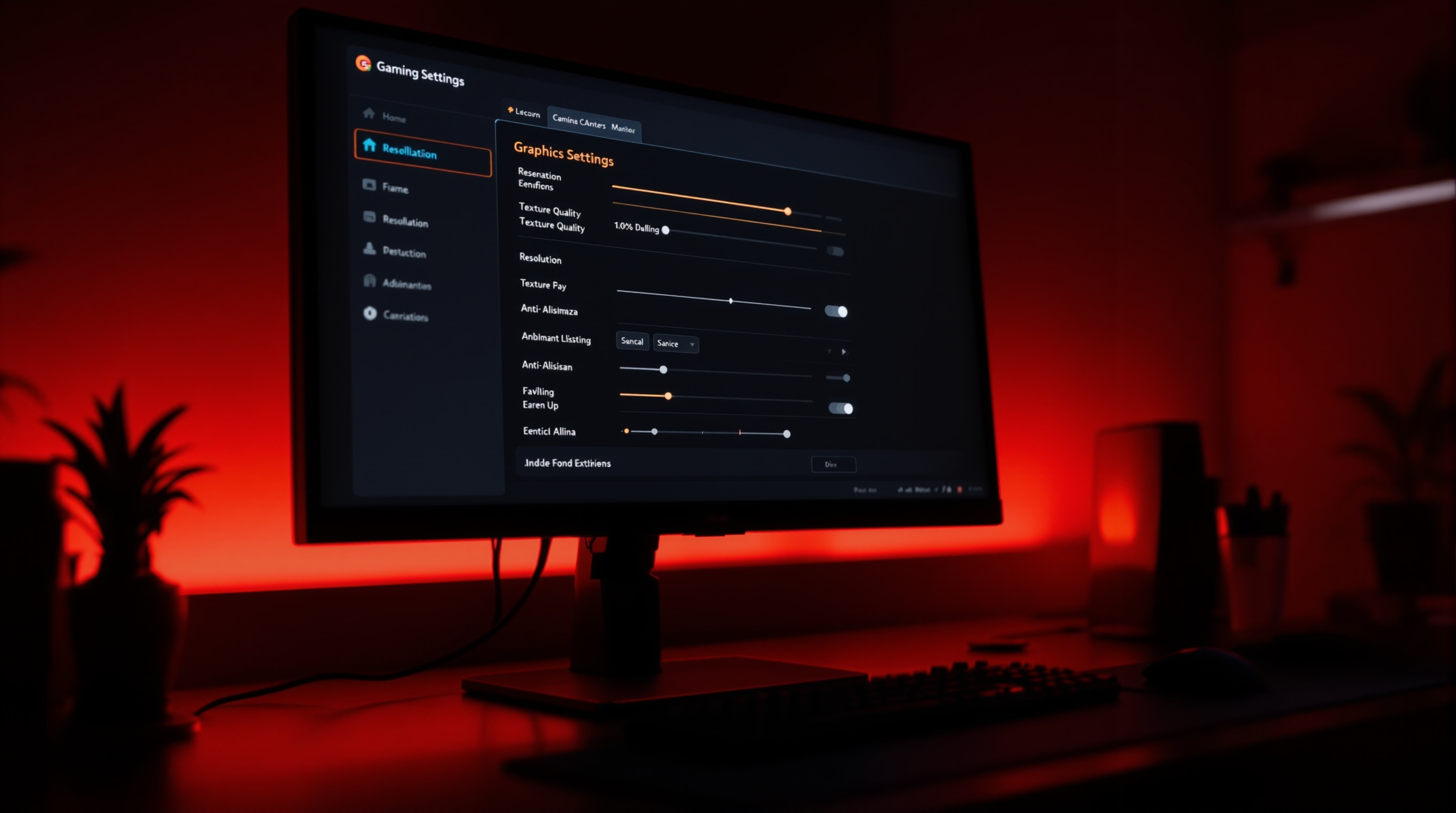
This is where most of your FPS gains will come from. Here's the optimal settings breakdown:
Resolution
- Play at your native resolution, but consider using 1728x1080 (stretched) or 1680x1050 if you're on a 1080p monitor. This gives you a wider player model while saving GPU resources.
- If you're on 1440p and struggling, dropping to 1080p can easily give you 40-60% more FPS.
The Settings That Matter Most
| Setting | Recommended | FPS Impact |
|---------|------------|------------|
| Texture Streaming Budget | Medium (2-4GB) | 🔴 High |
| Texture Filtering | Bilinear | 🟡 Medium |
| Ambient Occlusion | Disabled | 🔴 High |
| Sun Shadow Coverage | Low | 🔴 High |
| Sun Shadow Detail | Low | 🔴 High |
| Spot Shadow Detail | Disabled | 🟡 Medium |
| Dynamic Spot Shadows | Disabled | 🟡 Medium |
| Volumetric Lighting | Disabled | 🔴 High |
| Model Detail | Low | 🟢 Low |
| Effects Detail | Low | 🟡 Medium |
| Impact Marks | Disabled | 🟢 Low |
| Ragdolls | Low | 🟢 Low |
The Golden Rules:
- Shadows are FPS killers. Turn them all to Low or Off. You won't miss them in competitive play.
- Ambient Occlusion off is the single biggest FPS gain for most systems. We're talking 10-15% improvement.
- Volumetric Lighting off removes those pretty god rays but gives you another 5-10% boost.
- Keep Texture Streaming at Medium. Going lower doesn't save much FPS but makes the game look significantly worse.
Pro Tip: Many pro players actually prefer low settings not just for FPS, but because it reduces visual clutter and makes enemies easier to spot.
2. 🖥️ GPU Driver Settings: The Hidden Booster
Your GPU's control panel has settings that can make or break your performance. Here's what to change:
NVIDIA Users (NVIDIA Control Panel)
Open NVIDIA Control Panel → Manage 3D Settings → Program Settings → Select Apex Legends:
- Power Management Mode → Prefer Maximum Performance
- Texture Filtering Quality → High Performance
- Threaded Optimization → On
- Low Latency Mode → On (not Ultra, as Ultra can cause input lag in some setups)
- Max Frame Rate → Set to your monitor's refresh rate + 3 (e.g., 147 for 144Hz)
- Shader Cache Size → 10GB (prevents stutters from shader compilation)
- Vertical Sync → Off (always off for competitive)
AMD Users (AMD Radeon Software)
Open Radeon Software → Gaming → Apex Legends:
- Radeon Anti-Lag → Enabled
- Radeon Boost → Enabled (set min resolution to 80%)
- GPU Workload → Graphics
- Texture Filtering Quality → Performance
- Surface Format Optimization → Enabled
- Tessellation Mode → Override Application Settings → Off
Both GPUs:
- Always update your drivers, but wait 2-3 days after a new release to avoid day-one bugs
- Do a clean driver install every 2-3 months using DDU (Display Driver Uninstaller)
- Disable GPU overlay features (GeForce Experience overlay, Radeon overlay). They eat 3-5% FPS
3. ⚡ Launch Options: Free Performance
This one takes 30 seconds and can give you noticeable improvements. Add these launch options in Steam or Origin:
How to Set Launch Options:
Steam: Right-click Apex Legends → Properties → Launch Options EA App: Click Apex Legends → Manage → Properties → Advanced Launch OptionsRecommended Launch Options:
-novid -preload -freq 144 +fps_max 0 -threads 8What each does:
- -novid skips the intro video (faster launch)
- -preload preloads game assets into RAM (reduces in-game stutters)
- -freq 144 forces your monitor refresh rate (change 144 to your actual refresh rate)
- +fps_max 0 uncaps framerate (set to your target if you prefer a cap)
- -threads 8 tells the game to use 8 CPU threads (change to your actual thread count)
Bonus Options for Low-End Systems:
-novid -preload -freq 144 +fps_max 0 -threads 8 -forcenovsync -high- -forcenovsync ensures VSync is truly off
- -high sets the game process to high priority
Warning: Don't use -malloc=system or other memory allocator flags. They've been known to cause crashes in recent Apex updates.
4. 🪟 Windows Optimization: The Overlooked Step
Your operating system is probably eating 10-20% of your potential FPS. Here's how to fix it:
Game Mode & Graphics Settings
- Windows Game Mode → On (yes, it actually helps now in Windows 11)
- Hardware-accelerated GPU scheduling → On
- Variable Refresh Rate → On (if you have a G-Sync/FreeSync monitor)
Background Process Cleanup
Kill these before playing:- Browser tabs. Chrome alone can eat 2-4GB RAM.
- Discord hardware acceleration → Off (Settings → Advanced → Hardware Acceleration)
- Spotify. Close it or disable hardware acceleration.
- Windows Widgets → Disable (Settings → Personalization → Taskbar → Widgets Off)
- Xbox Game Bar → Disable (Settings → Gaming → Xbox Game Bar → Off)
Power Plan
- Open Control Panel → Power Options → High Performance
- Or even better, download and enable the Ultimate Performance power plan:
powercfg -duplicatescheme e9a42b02-d5df-448d-aa00-03f14749eb61
Virtual Memory (Page File)
If you have 16GB RAM:- Set Initial Size: 8192 MB
- Set Maximum Size: 16384 MB
- This prevents Windows from dynamically resizing the page file during gameplay, eliminating micro-stutters.
5. 📊 Autoexec Config: The Pro Player Secret
This is what separates average players from those running butter-smooth gameplay. Apex Legends supports an autoexec.cfg file that executes commands at launch.
How to Create It:
- Navigate to:
C:\Users\[YourName]\Saved Games\Respawn\Apex\local\ - Create a new file called
autoexec.cfg - Add these lines:
fps_max 0
cl_forcepreload 1
mat_compressedtextures 1
m_rawinput 1
cl_ragdoll_collide 0
r_particle_timescale 1
noise_filter_scale 0
mat_disable_bloom 1
mat_specular 0
cl_cloud_settings 0
What These Do:
- fps_max 0 uncaps framerate
- cl_forcepreload 1 preloads all models and textures
- mat_compressedtextures 1 uses compressed textures (less VRAM)
- m_rawinput 1 enables raw mouse input (no Windows acceleration)
- cl_ragdoll_collide 0 disables ragdoll physics collision
- mat_disable_bloom 1 kills bloom effect (cleaner visuals + small FPS gain)
- mat_specular 0 removes specular reflections (reduces visual noise)
- cl_cloud_settings 0 disables cloud save sync (prevents micro-stutters)
Important Notes:
- Set the file to Read-only after saving (right-click → Properties → Read-only)
- Some commands may be disabled or reset after major updates. Re-check after each patch.
- Not all commands work in every season. Test in the Firing Range first.
Bonus: What FPS Should You Actually Target?
| Monitor | Target FPS | Why |
|---------|-----------|-----|
| 60Hz | 60-80 FPS | Diminishing returns above refresh rate |
| 144Hz | 144-165 FPS | The competitive sweet spot |
| 240Hz | 200+ FPS | For those who want every advantage |
| 360Hz | 300+ FPS | Overkill for most, but pros love it |
The rule: Aim for your monitor's refresh rate as a minimum. Anything above that gives you smoother input response even if your monitor can't display the extra frames.
The Results
After applying all 5 of these optimizations, most players report:
- Low-end systems (GTX 1650, RX 580): +40-60 FPS
- Mid-range systems (RTX 3060, RX 6700 XT): +30-50 FPS
- High-end systems (RTX 4070+, RX 7800 XT+): +20-40 FPS
The exact gains depend on your specific hardware, but everyone benefits from these changes.
Final Thoughts
Performance in Apex Legends isn't just about having the best hardware. It's about getting the most out of what you've got. These 5 settings categories cover the full optimization stack: in-game, GPU driver, launch options, OS-level, and config files.
At Byteon, we know that every frame matters. That's why our tools are designed to work with minimal performance overhead:
- ✅ Less than 1% FPS impact
- ✅ Optimized for both NVIDIA and AMD
- ✅ Compatible with all the settings above
- ✅ Performance-tested with each update
More frames = faster reactions = more wins. Optimize your setup, then optimize your gameplay. 🎯
Got questions about specific hardware optimization? Drop by our community chat. We love talking FPS. 🎮