Byteon Internal Setup Guide — How to Install & Use on Apex Legends (2026)
Step-by-step installation and usage guide for Byteon. Learn how to set up spoofer, launch the loader, configure settings, and stay undetected on Apex Legends.

0x3nn
Author
Byteon Setup Guide
Last updated: 06.20.2026 · Status: 🟢 Undetected · Game: Apex Legends
Welcome to the official Byteon installation and usage guide. This page walks you through everything from purchase to your first match so you can get up and running in under 5 minutes. Bookmark this link; we update it with every version release.
📦 What You Get
After purchase, your Byteon dashboard will unlock:
- Secure loader — authenticated download link tied to your account
- Auto-updates — no need to re-download on every patch
- Private support channel on Website
- Config presets — legit, rage, and competitive profiles
✅ System Requirements
Before you start, make sure your setup meets the requirements:
- OS: Windows 10 / 11 (64-bit) — fully updated
- CPU: Intel or AMD
- Antivirus: Windows Defender — must be disabled before launch
⚠️ Important: Running on a VM, cracked Windows, or systems with active developer mode is not supported and may result in detection.
🛒 Step 1 — Purchase & Access
- Head over to the Byteon product page.
- Choose your subscription duration (1 day / 7 days / 30 days / 90 days — whichever you need).
- Complete checkout via your preferred payment method (crypto, card, binance gift card or reseller).
- After payment confirmation, log in to your Byteon dashboard.
- Open My Orders → you'll see your active key and Download Loader button.
🛡️ Step 2 — Prepare Your PC
Before launching the loader, you must prepare Windows properly. Skipping this step is the #1 cause of crashes and false bans.
2.1 — Disable Windows Defender Real-Time Protection
- Press
Win + I→ Privacy & Security → Windows Security. - Click Virus & threat protection → Manage settings.
- Turn Real-time protection OFF.
2.2 — Disable Third-Party Antivirus
If you run Kaspersky, Avast, AVG, Bitdefender, or similar — uninstall them completely (don't just disable). Leftover drivers will block injection.
🚀 Step 3 — Launch the Loader
- Extract the loader
.zipto your excluded folder (e.g.,C:\Byteon\). - Right-click the loader → Run as Administrator.
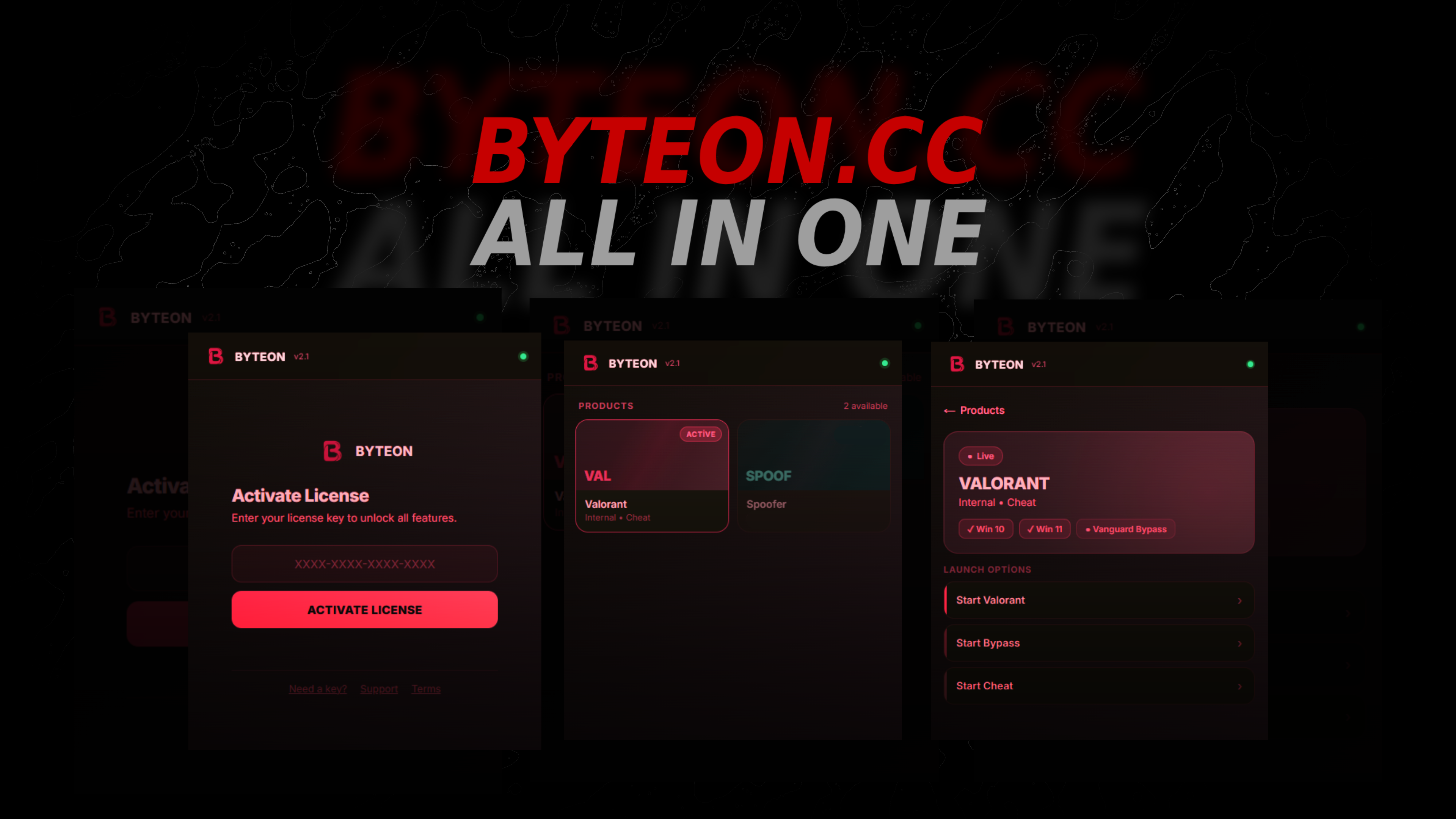
- Copy your Byteon Key and paste on loader with mouse right button.
- When you see
0K.on loader start game. - Wait for Menu, when you see menu you can start using our product.
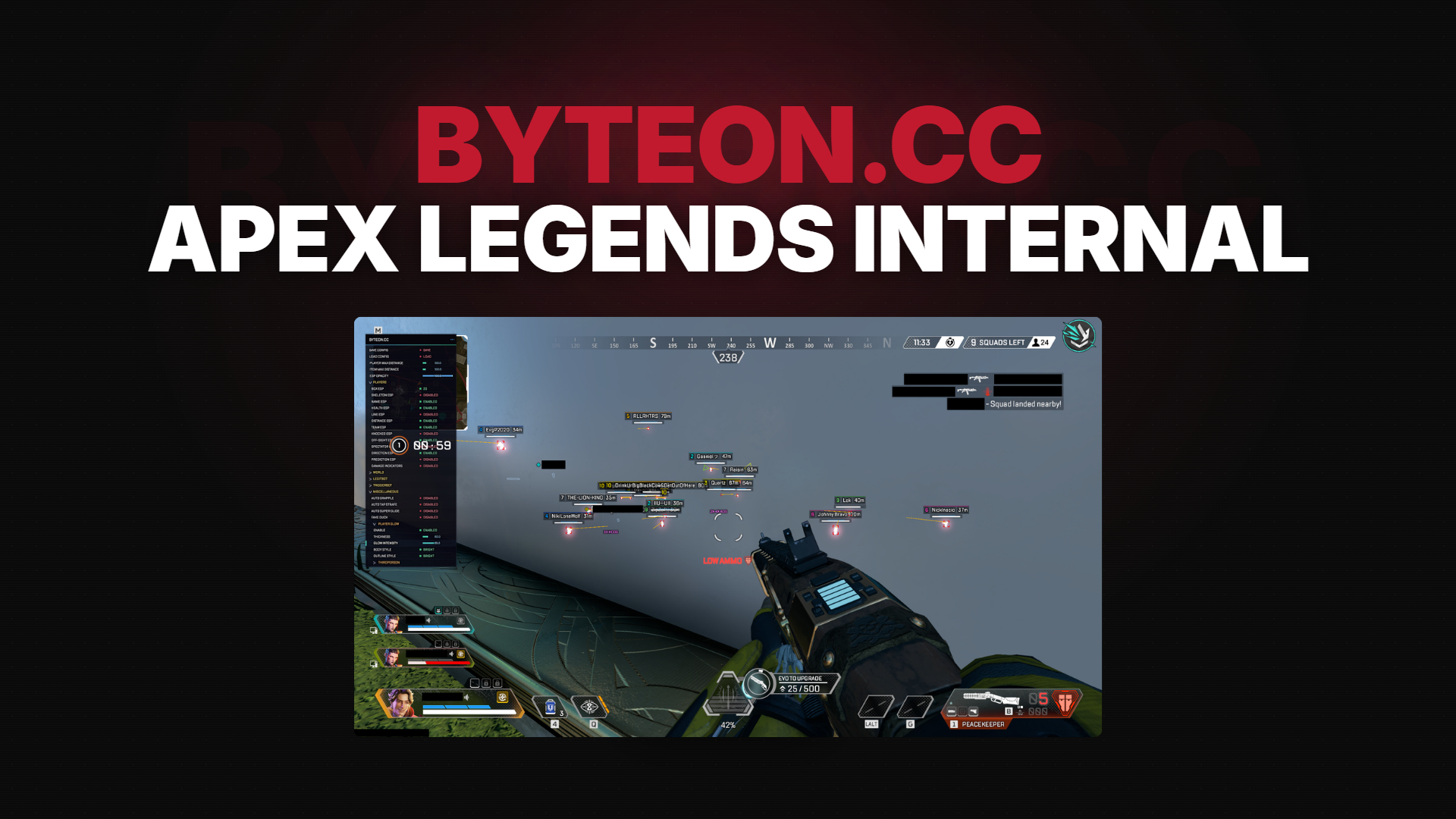
⚠️ Important: When the menu appears, you can use the arrow keys on your keyboard to adjust your settings and start playing.
🎮 Step 4 — In-Game Menu & Controls
Default hotkeys (can be rebound in the menu):
DELETE— Open / close the cheat menu
Rage presets are aggressive and increase report risk. For long-term use, stick to legit settings.
🔄 Updates & Downtimes
Anti-cheat updates (Vanguard, EAC, BattlEye) happen every 1–4 weeks. During these windows:
- The loader may show "Updating — please wait"
- Average downtime: 2–24 hours
- Follow real-time status in our Website.
- Never try to inject manually during updates — it will trigger detection flags.
💬 Need Help?
If you're stuck, we're here 24/7:
- 🎫 Open a ticket: Byteon Support
- 💬 Join our Discord community
- 💬 Join our Telegram community
- 👾 See How it Works Byteon.cc
- 📖 Check our Terms of Service
Our average response time is under 15 minutes during peak hours.
Ready to get started? Grab Byteon Internal now →
Byteon — Gaming Enhanced, Responsibly.